
The Favorites screen displays with your saved organizations and resources, or an empty state if you have no favorites yet
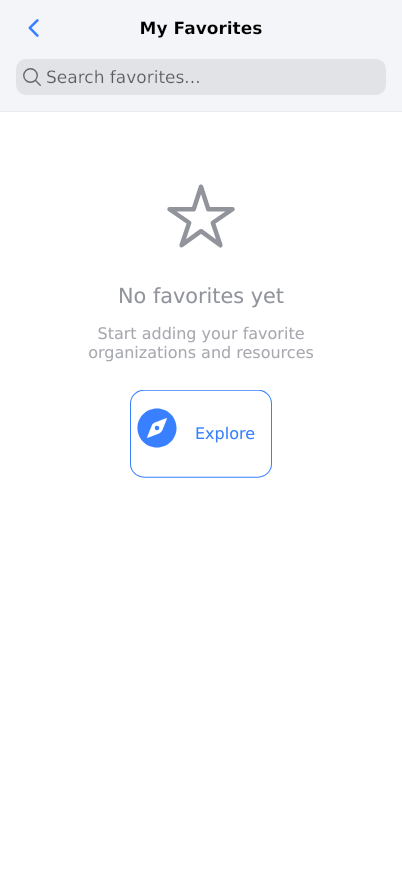
The Favorites feature allows you to save and quickly access your preferred organizations and resources within the Reserving app. This provides quick access to frequently used spaces, clubs, and services, eliminating the need to search for them repeatedly. When you first start using the app, your favorites list will be empty until you begin adding items from the Explore section.
Prerequisites
- A valid Reserving user account
- Successful login to the Reserving app
- Basic navigation skills within the mobile app
- Location services enabled for nearby recommendations
- Internet connection for loading favorite items
Steps
Progress: 0 of 10 steps
1
Navigate to the Favorites screen by selecting 'Favorites' from the main navigation
2
Tap the 'Explore' button when no favorites are present
3
Browse the Explore screen and locate an organization or resource you want to favorite
4
Add an item to favorites by tapping the favorite/heart icon on any organization or resource card
5
Return to the Favorites screen to view your saved items
6
Tap on any favorite item to view its details or make a reservation
7
Remove an item from favorites by tapping the favorite/heart icon again
8
Use the 'Más cercanas' (Closest) filter in Explore to find nearby options
9
Navigate between app sections using the bottom navigation bar (Home, Calendar, Explore, Profile)
10
Use the 'View All' links to see complete lists of reservations, vouchers, or recent activity
Interactive States
Empty Favorites State
Displayed when the user has not added any organizations or resources to their favorites list. Shows instructional text and a call-to-action to explore available options.
- Tap 'Explore' to browse available organizations
- Navigate to other app sections using bottom navigation
Explore Screen State
The main browsing interface showing available organizations and resources with filtering options and detailed information cards.
- Browse organization cards
- Filter by proximity using 'Más cercanas'
- Add items to favorites
- View organization details
- Make reservations
Home Screen State
The main dashboard showing upcoming reservations, favorites summary, vouchers, and recent activity with quick access to common actions.
- View upcoming reservations
- Access favorites
- Check vouchers
- See recent organizations
- Make quick reservations
Calendar Screen State
Weekly calendar view showing reservation schedule with time slots and daily overview for planning and management.
- View daily schedule
- Navigate between weeks
- See time-based reservations
- Plan future bookings
Profile Screen State
User account management interface with personal information, preferences, security settings, and subscription options.
- Update personal information
- Manage notification preferences
- Change password
- Explore Reserving Pro features
- Delete account
Tips
- Add your most frequently used organizations to favorites for quick access during busy periods
- Use the 'Más cercanas' filter in Explore to discover relevant local options to favorite
- Regularly review and update your favorites as your preferences change
- Combine favorites with the calendar view to quickly schedule repeat bookings
- Favorite both organizations and specific resources within them for most efficient booking
- Use the distance indicators in Explore to prioritize locations that minimize travel time
- Check the 'upcoming events' and 'bookings this month' metrics to identify popular options worth favoriting
Warnings
- Removing an item from favorites does not cancel any existing reservations - use the calendar or reservations screen for cancellation
- Favorites are stored locally on your device - backing up your account ensures you don't lose your favorite list
- Location-based recommendations require location services to be enabled for accurate distance calculations
- Some organizations may change their offerings or pricing - always verify current details before booking
- Deleting your account will permanently remove all favorites and cannot be recovered
Troubleshooting
FAQ
What is the purpose of the Favorites feature? The Favorites feature allows you to save frequently used organizations and resources for quick access, eliminating the need to search for them repeatedly when making reservations.
How do I add my first favorite item? Tap the 'Explore' button on the empty Favorites screen, browse available organizations, and tap the favorite/heart icon on any organization card to add it to your favorites.
What information is shown on organization cards in Explore? Organization cards display the name, type (Club, Community, Other), location, distance from you, starting price, description, distance, and metrics like upcoming events or recent bookings.
Can I favorite both organizations and specific resources? Yes, you can favorite entire organizations for quick access to all their offerings, or specific resources (like Tennis Court 1) for direct booking of particular spaces.
What happens if I remove an item from favorites? The item is immediately removed from your favorites list but any existing reservations remain unchanged. You can always re-add it later if needed.
Why do some organizations show distance while others don't? Distance is calculated based on your current location. Organizations without distance indicators may be outside the proximity filter range or may not have location data available.
How many items can I add to my favorites? There is typically no hard limit to the number of favorites you can save, though very long lists may become less practical for quick access.