
The Dashboard page loads, displaying your personalized overview.
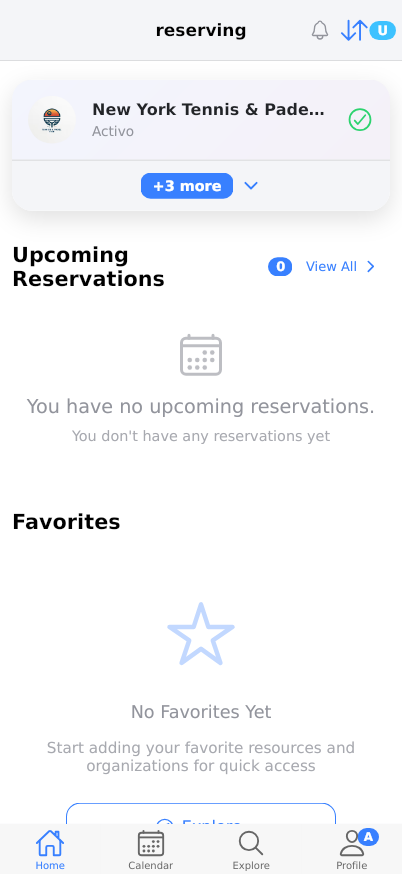
The Dashboard is the main hub of Reserving. It shows your upcoming reservations, favorite organizations, voucher balances, and recent activity. From here you can quickly navigate to create a reservation, explore organizations, or manage your profile.
Prerequisites
- You must have a Reserving account and be logged in.
- Your account must be associated with at least one organization to see organization-specific sections.
- For admin features (e.g., cash payments), you need admin privileges for the selected organization.
- A stable internet connection is required to load data from the server.
- Notifications must be enabled in your device settings to receive real-time updates.
Steps
Progress: 0 of 11 steps
1
Tap the 'Home' tab at the bottom navigation bar.
2
Tap the 'A' button (top-right corner).
3
Tap 'View All' next to 'Upcoming Reservations'.
4
Tap 'View all' next to 'Favorites'.
5
Tap 'Reserve' on any organization card (e.g., '北京 网球与板网球俱乐部').
6
Tap 'View all' next to 'Your Vouchers'.
7
Tap 'View all' next to 'Recent'.
8
Tap the 'Calendar' tab at the bottom.
9
Tap the 'Explore' tab at the bottom.
10
Tap the 'Profile' tab at the bottom.
11
Pull down on the screen to refresh.
Interactive States
Main Dashboard View
The default view showing the organization selector, upcoming reservations count, favorites, vouchers, and recent activity.
- Tap 'A' button
- Tap 'View All' links
- Tap 'Reserve' buttons
- Tap bottom tabs
Empty State (No Upcoming Reservations)
When you have no upcoming reservations, a message 'You have no upcoming reservations.' is displayed along with a suggestion 'You don't have any reservations yet'.
- Tap 'View All' (still navigates to reservations list, which will be empty)
- Tap 'Reserve' on an organization to create a reservation
Tips
- Use the pull-to-refresh gesture to manually update data without waiting for automatic refresh.
- The dashboard uses a TTL (time-to-live) cache to avoid unnecessary API calls; data may be a few seconds old.
- If you are an admin, the dashboard loads organization settings (like allowCashPayments) to enable admin features.
- The 'A' button may provide quick access to admin actions like cash payments or resource management.
- Favoriting an organization makes it easier to reserve from the dashboard.
Warnings
- Do not rely on the dashboard for real-time availability; always confirm on the reservation page.
- If you switch organizations, the dashboard content will update to reflect the new organization's data.
- The 'A' button might perform destructive actions (e.g., cancel reservations) depending on configuration.
Troubleshooting
FAQ
What does the 'A' button do? The 'A' button is an interactive button that performs a user action, likely related to admin functions or quick actions. Its exact function depends on your role and organization settings.
How do I change the organization shown on the dashboard? Tap the organization name at the top (e.g., 'New York Tennis & Padel Club') to open the organization selector and choose another organization.
What is the 'Upcoming Reservations' section? It shows the number of reservations you have in the future. Tap 'View All' to see the full list.
How do I add a favorite organization? Navigate to the organization's page (e.g., via Explore) and tap the star icon to add it to favorites. Favorites appear on the dashboard.
What are 'Your Vouchers'? Vouchers are prepaid packages (e.g., '10-Pack') that you can use for reservations. The dashboard shows the remaining uses.