
The calendar view immediately scrolls to and highlights the current date, showing today's schedule with any existing reservations displayed in their respective time slots
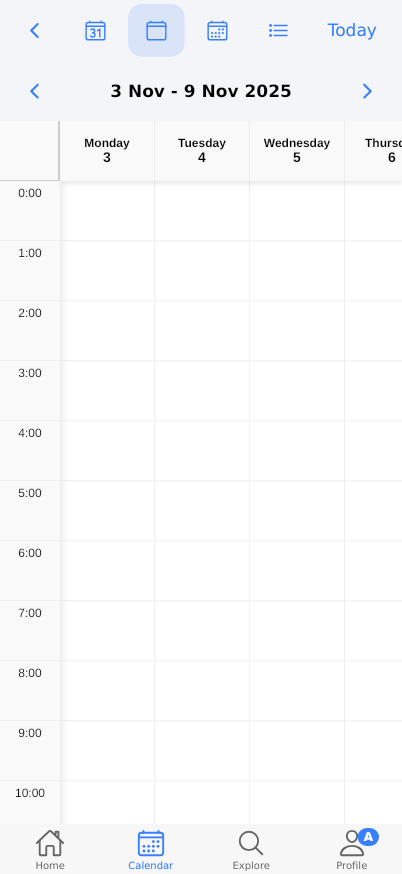
The Calendar view provides a weekly overview of your reservation schedule, displaying time slots from 12:00 AM to 11:00 PM across seven days. This view helps you visualize your booked time slots and available openings at a glance. You can navigate between different weeks and quickly access other app sections through the bottom navigation bar.
Prerequisites
- Reserving account registration and login
- Basic understanding of calendar navigation
- Familiarity with time-based scheduling concepts
- Access to mobile device or web browser with Reserving app installed
Steps
Progress: 0 of 9 steps
1
Tap the 'Today' button at the top of the calendar
2
Scroll vertically through the calendar time slots
3
Swipe horizontally left or right on the calendar
4
Tap the 'Home' tab in the bottom navigation
5
Tap the 'Calendar' tab in the bottom navigation
6
Tap the 'Explore' tab in the bottom navigation
7
Tap the 'Profile' tab in the bottom navigation
8
Tap on any specific time slot in the calendar grid
9
Tap on an existing reservation block in the calendar
Interactive States
Main Calendar View
Default weekly calendar display showing time slots from 0:00 to 23:00 across Monday through Sunday, with the current week highlighted in the date range header
- Navigate to current date
- Scroll through time slots
- Swipe between weeks
- Access bottom navigation tabs
Home Tab State
Dashboard view showing user's reservation overview, favorites, vouchers, and recent organizations with quick reservation options
- View upcoming reservations
- Browse favorite resources
- Check voucher balances
- Make quick reservations from recent list
Explore Tab State
Discovery interface showing popular and nearby resources filtered by location, with distance indicators and pricing information
- Browse nearby resources
- Filter by location proximity
- View resource details and pricing
- Initiate reservation process
Profile Tab State
User account management interface with personal information, preferences, security settings, and Reserving Pro feature offerings
- Update personal details
- Manage notification preferences
- Change security settings
- Explore Pro features
Tips
- Use the 'Today' button frequently to quickly return to your current schedule after browsing future or past weeks
- Scroll through all time slots (0:00-23:00) to ensure you don't miss early morning or late evening reservations
- The bottom navigation provides consistent access to all main app sections - use it to quickly switch between scheduling and discovery
- Horizontal swiping between weeks is more efficient than using date pickers for browsing nearby time periods
- Empty time slots represent booking availability - tap them to quickly create new reservations for those times
Warnings
- Making reservations for time slots that appear available but might have pending bookings from other users could result in scheduling conflicts
- Always verify the date range displayed (e.g., '3 Nov - 9 Nov 2025') to ensure you're viewing the correct week before making reservations
- Cancelling reservations may be subject to organizational policies - check cancellation terms before booking
- Time slots displayed are based on your current device timezone - ensure your device settings match your physical location
- Some organizations may have unlisted maintenance periods or blackout dates not visible in the standard calendar view
Troubleshooting
FAQ
What does the 'Today' button do and when should I use it? The 'Today' button instantly returns your calendar view to the current date, highlighting today's schedule. Use it when you've navigated to future or past weeks and want to quickly return to view today's reservations and availability.
How do I read the time slots in the calendar? Time slots run vertically from 0:00 (midnight) to 23:00 (11 PM) in 24-hour format. Each slot represents one hour, and days are organized horizontally from Monday to Sunday. Empty slots indicate available booking times.
What is the purpose of the bottom navigation tabs? The bottom navigation provides quick access to the four main sections of Reserving: Home (your dashboard), Calendar (scheduling view), Explore (discovery), and Profile (account management). These remain consistently available throughout the app.
How do I navigate to different weeks in the calendar? Swipe left to view previous weeks or swipe right to view future weeks. The date range display at the top (e.g., '3 Nov - 9 Nov 2025') updates automatically to show which week you're currently viewing.
Why are some time slots empty while others have content? Empty time slots represent available booking periods where you can make reservations. Slots with content show existing reservations - tap them to view details, modify, or cancel the booking.
What should I do if I don't see any reservations in my calendar? First verify you're viewing the correct date range, check that you're logged into the correct account, and ensure you have active internet connection. If issues persist, try refreshing the app or checking the Home tab for upcoming reservations.
Can I make reservations directly from the calendar view? Yes, tap any empty time slot to initiate the reservation process for that specific date and time. The system will guide you through selecting resources and confirming the booking.